11 . 06 . 2026
Phishing via Microsoft Teams: a threat that calls for a review of Microsoft 365 security
Phishing via Microsoft Teams is becoming an increasingly common attack vector for businesses. Learn how it works, what risks it poses, and what controls to review to protect Microsoft 365.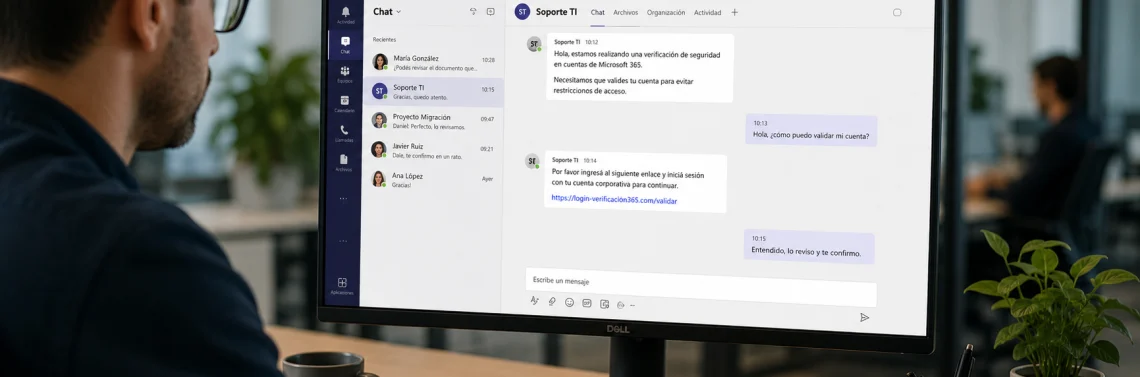
Table of contents
- Why phishing is shifting to Microsoft Teams
- How a Microsoft Teams phishing attack works
- The real risk: from external chat to Microsoft 365 compromise
- Warning signs users should recognize
- Technical controls to review in Teams and Microsoft 365
- What to do if a user interacted with a suspicious message
- How Wezen Can Help Reduce This Risk
- FAQ about phishing via Microsoft Teams
- Phishing via Microsoft Teams: a new challenge for cybersecurity
Phishing via Microsoft Teams is emerging as a type of attack that organizations should not underestimate. For years, email was the channel most commonly used by cybercriminals to steal credentials, distribute malicious links, or impersonate others.
Today, that landscape has expanded.
Collaboration platforms are also part of the attack surface. And Microsoft Teams, due to its everyday use in corporate environments, has become an attractive channel for social engineering campaigns, identity theft, and unauthorized access.
The risk does not lie in Teams as a tool. The risk arises when an organization uses collaboration channels without adequate governance of external access, identity controls, monitoring, and user awareness.
Therefore, this type of threat should not be addressed solely as a problem of “users clicking links.” It must be understood as a clear signal: Microsoft 365 security requires a comprehensive approach.
Why phishing is shifting to Microsoft Teams
Attackers look for channels where users let their guard down.
When it comes to email, many people already recognize certain red flags: unfamiliar domains, urgent subject lines, suspicious attachments, or untrustworthy links. In contrast, a message received within Microsoft Teams may seem more legitimate because it comes through a platform that the organization uses every day for work.
That context builds trust.
An external chat might appear as:
- an inquiry from a vendor,
- a technical support message,
- a request from a client, or
- a purported communication from the IT department.
This point is key: the threat does not rely solely on a malicious link. Often, the goal is to get the user to accept a conversation, trust the sender, and take a subsequent action: approve a request, share a code, install a tool, or enable a remote session.
How a Microsoft Teams phishing attack works
The scheme may vary, but it typically follows a clear pattern.
First, the attacker initiates contact through an external chat, an invitation, a call, or an interaction that appears to be legitimate. In recent campaigns, Microsoft identified abuses of external collaboration in Teams where attackers posed as support or helpdesk staff to trick users into granting remote access.
They may also present themselves as a technology vendor, an account executive, a client, or someone known within the company’s ecosystem.
Next, they attempt to build trust or create a sense of urgency.
Some common messages include:
- “We need to verify your account.”
- “There’s a problem with your access.”
- “You have pending documents.”
- “Install this tool so we can assist you.”
- “Click this link to continue.”
The goal may be for the user to click a fraudulent link, download a file, hand over their credentials, share a verification code, approve an MFA request they didn’t initiate, or grant remote access to their computer.
In more sophisticated attacks, the deception may continue through another, less controlled channel, such as a phone call, WhatsApp, or a remote support tool. In this way, the attacker combines social engineering with the misuse of legitimate tools.
The real risk: from external chat to Microsoft 365 compromise
The problem doesn’t end with the message.
A seemingly minor interaction can lead to a much broader incident. If the user performs the requested action, the attacker may attempt to move on to other assets within the Microsoft 365 environment.
Potential impacts include:
- Unauthorized access to Outlook, Teams, OneDrive, or SharePoint.
- Exposure of emails, files, and internal conversations.
- Theft or misuse of authentication tokens.
- Creation of malicious rules in email.
- Installation of unauthorized software.
- Lateral movement within the environment.
- Exfiltration of sensitive information.
- Compromise of accounts with elevated permissions.
- Operational disruptions or loss of control over critical data.
For this reason, Teams phishing must be analyzed as a threat to identity, collaboration, and operations. It is not enough to review the specific message. It is necessary to understand what permissions the user had, what data they could access, which sessions remained active, and what subsequent activity occurred.
In modern environments, a compromised account can be just as critical as an infected endpoint.
Warning signs users should recognize
Technical prevention is essential, but the user remains a key line of defense.
Certain signs should trigger immediate alarm:
- The sender is listed as external and is not clearly recognizable.
- The name resembles that of a real person, vendor, or company, but does not match exactly.
- The message conveys urgency, pressure, or the threat of account suspension.
- It asks you to click on an unexpected link.
- Files are sent without context.
- It asks for a username, password, MFA code, or verification code.
- It asks you to approve a login that you did not initiate.
- It asks you to install tools such as AnyDesk, TeamViewer, Quick Assist, or other remote access solutions.
- It invites you to continue the conversation via an external channel.
- A message with a tone that is unusual for the person or department supposedly sending it.
The recommendation for the user should be simple: if the message seems strange, unexpected, or too urgent, the right thing to do is to stop, not interact with it, and report it.
Technical controls to review in Teams and Microsoft 365
Defending against this type of attack requires a combination of configuration, monitoring, and identity management.
First, you should review external access settings in Microsoft Teams, limit communication with unauthorized external domains, block suspicious domains or senders using the Tenant Allow/Block List, and control collaboration with unmanaged accounts.
Additionally, other recommended measures include:
- Strengthening conditional access policies, evaluating phishing-resistant authentication methods, and monitoring anomalous logins.
- Reviewing Microsoft Defender alerts and telemetry, as well as enabling controls over links and shared files in Teams.
- Enabling mechanisms for users to report suspicious messages and applying the principle of least privilege.
- Define incident response playbooks.
The key point is to avoid overly open default configurations. Each organization must strike a balance between collaboration and control, based on its operations, vendors, exposure, and risk level.
In some cases, it may be advisable to work with allowed external domains. In others, limit certain Tenants, block suspicious senders, or strengthen alerts regarding external domain anomalies. The decision should not be generic: it must align with the company’s operational model.
What to do if a user interacted with a suspicious message
If a user accepted an external conversation, clicked on a link, downloaded a file, provided information, or granted remote access, a swift response is critical.
The first steps should include:
- Report the incident to the IT or security department.
- Preserve evidence of the message, sender, link, or file.
- Change credentials where applicable.
- Review login logs and revoke active sessions if necessary.
- Analyze activity in Outlook, Teams, SharePoint, and OneDrive.
- Check for suspicious rules created in email.
- Check the endpoint for any downloads or remote access.
- Identify access to sensitive information.
- Document the incident to adjust preventive controls.
A rapid response can prevent a one-time phishing attempt from escalating into a major breach.
How Wezen Can Help Reduce This Risk
Protecting against phishing via Microsoft Teams requires more than just adjusting a setting. It involves reviewing how the organization manages collaboration, identity, external access, monitoring, and incident response.
From a comprehensive perspective, Wezen helps companies assess and strengthen their security posture in Microsoft 365 environments. This includes reviewing critical Teams settings, analyzing external access policies, identifying exposure points, strengthening identity controls, supporting the use of Microsoft Defender, and defining best operational practices.
The goal is not to block collaboration. It is to build a more secure, controlled environment that is prepared to work with external users without unnecessarily increasing risk.
Effective security does not depend on a single tool. It depends on a well-configured architecture, trained users, continuous monitoring, and clear technology governance criteria.
FAQ about phishing via Microsoft Teams
Does phishing via Microsoft Teams replace email phishing?
No. It complements it. Attackers use multiple channels to increase their chances of success. Email remains relevant, but collaboration platforms are also part of the risk.
Is an external message in Teams always dangerous?
Not necessarily. Many organizations work with legitimate external users. However, any unexpected contact should be verified, especially if it includes links, files, urgency, or access requests.
Is multi-factor authentication enough to prevent these attacks?
It helps, but it’s not always enough. Some techniques aim to get the user to approve access, provide codes, or authorize legitimate sessions initiated by the attacker.
Should all external communication in Teams be blocked?
It depends on the business model. In some organizations, this may be feasible. In others, external collaboration must be allowed, but with authorized domains, monitoring, clear policies, and training.
Phishing via Microsoft Teams: a new challenge for cybersecurity
Phishing via Microsoft Teams demonstrates that security can no longer be viewed solely through the lens of email. Attackers are exploiting trusted platforms, legitimate workflows, and everyday work habits to create more credible scams.
That’s why organizations need to review how they collaborate, who they communicate with, what access they grant, and how they detect anomalous behavior within Microsoft 365.
The main recommendation is clear: if a Teams message seems strange, unexpected, or too urgent, it’s best to pause, refrain from interacting, and report it.
And from a technology management perspective, the challenge is broader: building a secure collaboration architecture with operational control, continuous protection, and a real ability to respond.
Assess the security of your Microsoft 365 environment and check whether your organization is prepared to prevent, detect, and respond to phishing attacks via Microsoft Teams. Write to us.

Image: Generated by AI (DALL·E 3 – GPT-4o), OpenAI, 2026.
Sources
- Check Point Harmony Email Security Researchers. (2026, enero 22). Attackers continue to target trusted collaboration platforms: 12,000+ emails target Teams users. Check Point Blog. URL
- Microsoft Security. (2026, abril 6). Inside an AI-enabled device code phishing campaign. Microsoft Security Blog. URL
- Microsoft Security. (2026, abril 18). Cross-tenant helpdesk impersonation to data exfiltration: A human-operated intrusion playbook.
- Microsoft Security Blog. URL
- Microsoft. (2026, marzo 12). Block domains and addresses in Microsoft Teams using the Tenant Allow/Block List. Microsoft Learn. URL
- Microsoft. (2026, abril 20). Microsoft Defender for Office 365 support for Microsoft Teams. Microsoft Learn. URL
Related articles

Microsoft Viva: the key to teleworking
The first Employee Experience Platform For Wezen Group, human value is our most precious capital and the key to success. [...]
How to address the specialized cybersecurity talent gap in the age of AI
Lack of specialized cybersecurity talent. Discover how to address this with effective strategies, training, and managed services.